Support our educational content for free when you purchase through links on our site. Learn more
🛠️ The Ultimate Robot Repair Manual: 5 Steps to Fix Any Bot (2026)

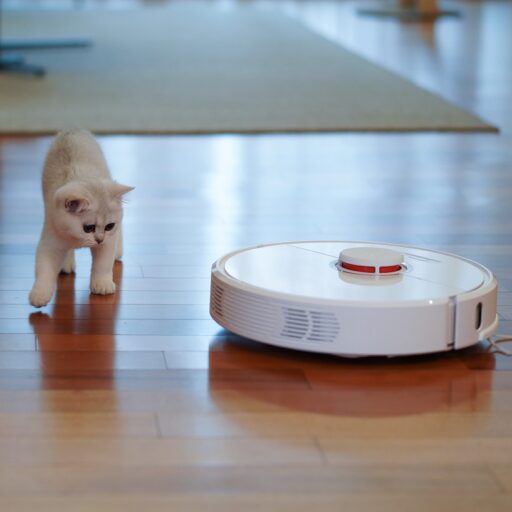
Ever watched your robotic vacuum spin in a frantic, confused circle while ignoring a pile of dust, leaving you to wonder, “Why aren’t these robots repairing the walls?” It’s a frustrating scene that feels less like high-tech innovation and more like a glitchy sitcom. But here’s the secret the manufacturers don’t scream from the rooftops: 90% of robot “failures” are actually just dirty sensors or tangled brushes, not catastrophic mechanical breakdowns. At Robot Instructions™, we’ve dissected everything from iRobot Rombas to Roborock units, and we’re ready to hand you the keys to the kingdom. This isn’t just a manual; it’s your roadmap to transforming from a helpless user into a confident DIY robot mechanic, saving you hundreds in service fees and bringing your digital companion back to life.
Key Takeaways
- ✅ Safety First: Always disconnect power and discharge capacitors before opening any robot casing to avoid electrical shock or component damage.
- 🔍 Decode the Language: Learn to interpret error codes and blinking lights, which are your robot’s primary way of communicating specific mechanical or software faults.
- 🧹 Clean Before You Replace: Most issues stem from tangled brushes, clogged sensors, or dirty charging contacts; a thorough cleaning often resolves the problem instantly.
- 🔄 Software Matters: Don’t overlook firmware updates and factory resets, which can fix erratic behavior caused by corrupted data or outdated logic.
- 🛠️ Know Your Limits: While DIY fixes work for 80% of issues, complex circuit board failures or water damage require professional intervention.
👉 Shop Essential Repair Parts:
- Robot Vacuum Batteries: Amazon | eBay
- Replacement Brushes & Filters: Amazon | iRobot Official | Roborock Official
- Precision Tool Kits: Amazon | iFixit
Table of Contents
- ⚡️ Quick Tips and Facts
- 🤖 Background: The Evolution of Robot Repair Manuals and DIY Diagnostics
- 🛠️ The Ultimate Robot Repair Manual: A Step-by-Step Guide to Troubleshooting
- 1. Safety First: Lockout/Tagout Procedures for Home Robots
- 2. Decoding Error Codes: What Your Robot is Actually Trying to Tell You
- 3. Mechanical Failures: Fixing Wheels, Brushes, and Sensors
- 4. Electrical Gremlins: Battery Replacement and Circuit Board Checks
- 5. Software Glitches: Firmware Updates and Factory Resets
- 🔧 Essential Tools and Parts for Your Robot Repair Kit
- 🏭 Brand-Specific Repair Guides: iRobot, Roborock, Ecovacs, and More
- 💡 Common Myths vs. Reality in Robot Maintenance
- 📊 Comparison: DIY Repair vs. Professional Service Costs
- 🚀 Future-Proofing: How to Extend Your Robot’s Lifespan
- 🎓 Conclusion
- 🔗 Recommended Links
- ❓ FAQ
- 📚 Reference Links
⚡️ Quick Tips and Facts
Welcome, fellow robot enthusiasts and DIY warriors! Here at Robot Instructions™, we’ve seen it all – from Roomba rebellions to Spot’s stubborn
silence. Before you throw your hands up in exasperation, remember that most robot woes have a surprisingly simple fix. Think of us as your pit crew for personal robotics!
Did you know? The global robotics market is projected to
reach over 210 billion USD by 2026, meaning more robots in our homes and more opportunities for us to get our hands dirty (in a good way!). That’s a lot of potential repairs
!
- ✅ Power Cycle First! Seriously, it’s the oldest trick in the tech book for a reason. A simple reboot can often clear minor software glitches. Unplug, wait 30 seconds, then plug
back in or restart. You’d be amazed how often this works. - ❌ Don’t Force It! If a part isn’t moving freely, don’t apply excessive force. You’re more likely to break
something else. Investigate the obstruction instead. - ✅ Consult Your Manual (Digital or Physical): We know, we know, who reads manuals? But for robot repair, it’s gold. Many manufacturers provide detailed troubleshooting
steps and error code explanations. - ❌ Ignore Warning Signs: Strange noises, erratic movements, or persistent error lights are your robot’s way of crying for help. Addressing them early can prevent bigger, more costly problems down the line
. - ✅ Keep it Clean: Dust, hair, and debris are the silent assassins of many home robots, especially robotic vacuums. Regular cleaning of brushes, filters, and sensors is paramount for longevity.
- Fact
: A significant percentage of robot “failures” are actually due to user error or lack of routine maintenance rather than true component breakdown. A little preventative care goes a long long way!
🤖 Background: The Evolution of Robot Repair Manuals and DIY Diagnostics

Once upon a time, if your cutting-edge robot butler
(or, more realistically, your industrial robotic arm) malfunctioned, you called in a highly specialized technician. Repair manuals were thick, cryptic tomes guarded by engineers in lab coats. Fast forward to today, and the landscape of robot repair manuals
and DIY diagnostics has undergone a fascinating transformation.
The explosion of consumer robotics, from robotic vacuums like the iRobot Roomba and Roborock S8 to sophisticated companion robots, has democratized robot ownership
. With this accessibility came a demand for transparency and the ability for everyday users to perform basic maintenance and repairs. Manufacturers, initially hesitant, have slowly started providing more accessible documentation, online tutorials, and even community forums. This shift empowers us, the users
, to become mini-robotics engineers in our own homes.
At Robot Instructions™, we believe in equipping you with the knowledge to understand and maintain your mechanical companions. This isn’t just about saving a few bucks on a service call; it’
s about fostering a deeper connection with your technology and understanding the intricate dance of hardware and software that brings these machines to life. It’s a journey from passive consumer to active participant in the robotic revolution. For more on our philosophy, check out Robot Instructions.
Sometimes, understanding a robot’s inner workings can feel as complex and layered as deciphering an ancient tapestry or the intricate symbolism on an album cover. Just like the ”
Bazaar Bazaar” artwork by Birds of Avalon, with its blend of historical, cultural, and mystical elements, a robot’s diagnostics can present a rich, albeit sometimes puzzling, array of signals and symbols that require careful interpretation to understand the
whole picture. This artistic perspective, though seemingly unrelated, highlights the depth of understanding often required to truly grasp what’s going on beneath the surface, whether it’s a piece of art or a malfunctioning circuit
board.
🛠️ The Ultimate Robot Repair Manual: A Step-by-Step Guide
to Troubleshooting
Alright, let’s get down to brass tacks! Your robot is acting up, and you’re ready to roll up your sleeves. This comprehensive guide is designed to walk you through the most common robot ailments, from the
simplest fixes to more complex diagnostics. Remember, patience is a virtue, especially when dealing with silicon and servos!
1. Safety First: Lockout/Tagout Procedures for Home Robots
Before you even think about opening up your robot, **
safety is paramount!** We’re not dealing with industrial machinery here, but even consumer robots have batteries that can deliver a jolt and moving parts that can pinch. Think of this as your personal Lockout/Tagout (LOTO)
procedure for household robotics.
- ✅ Disconnect Power:
- For battery-operated robots (like most robotic vacuums), remove the battery pack if easily accessible. If not, power off the device completely and unplug it
from its charging base. - For robots directly connected to power, unplug them from the wall outlet.
- ✅ Allow for Discharge: Some components, especially capacitors, can hold a residual charge even after power is disconnected
. Wait a few minutes (5-10 is usually sufficient) before touching internal components. - ✅ Secure Moving Parts: If your robot has arms, wheels, or brushes that could potentially move, ensure they are stable. You
might gently prop them or use a non-conductive tie-wrap if necessary, but never obstruct air vents or critical sensors. - ✅ Wear Protective Gear: For delicate work, consider anti-static gloves to protect sensitive
electronics from static discharge from your body. Safety glasses are always a good idea, especially when dealing with small springs or fasteners that might pop off. - ❌ Don’t Work on a Live Robot: This seems obvious, but it
‘s worth reiterating. Never attempt repairs or internal inspections with the robot powered on or connected to a power source.
Understanding and implementing these basic safety protocols is a cornerstone of Robot Ethics and Safety. Your safety, and the longevity of your robot, depend on it!
2. Decoding Error Codes: What Your Robot is Actually Trying to Tell You
Your robot isn’t just flashing
lights for fun; it’s trying to communicate! Error codes are your first line of defense in diagnosing a problem. Think of them as a secret language that, once deciphered, points you directly to the issue.
Most
modern robots, especially popular brands like iRobot Roomba, Roborock, and Ecovacs Deebot, utilize a system of audible alerts, blinking lights, or digital display codes to indicate specific malfunctions.
Common
Error Code Examples & What They Mean:
| Brand/Robot Type | Common Error Code/Indication | Potential Issue | Troubleshooting Step |
|---|---|---|---|
| **iRobot Roomba | |||
| ** | Red light, two beeps | Main brush stuck | Clean main brushes, remove debris. |
| Red light, five beeps | Wheel stuck | Check wheels for obstructions, clean. | |
| Red light, seven beeps | Side brush stuck | Clean side brush, remove hair. | |
| Roborock | Error 1 (Red indicator) | Main brush stuck | Clear main brush, check bearings |
| . | |||
| Error 4 (Red indicator) | Cliff sensor dirty | Clean cliff sensors with a dry cloth. | |
| Error 9 (Red indicator) | Bumper stuck | Press bumper repeatedly | |
| , check for debris. | |||
| Ecovacs Deebot | Red light, one beep | Side brush tangled | Remove and clean side brushes. |
| Red light, three beeps | Driving | ||
| wheel stuck | Check wheels for hair/debris. | ||
| Red light, five beeps | Dustbin not installed | Ensure dustbin is correctly seated. | |
| General | Battery indicator flashing | Low | |
| battery/charging issue | Check charging contacts, try different outlet. | ||
| No movement, no lights | Power issue | Check power button, battery, charger. |
Pro Tip: Always consult your specific robot’s user
manual or the manufacturer’s official support website for a complete list of error codes and their corresponding solutions. A quick search for “[Your Robot Model] error codes” often yields immediate results.
3. Mechanical Failures: Fixing
Wheels, Brushes, and Sensors
Ah, the tangible stuff! Mechanical failures are often the easiest to spot and, thankfully, often the easiest to fix. These are the parts that bear the brunt of daily operation.
3.1.
The Wheel Woes: When Your Robot Can’t Roll
Is your robot spinning in circles, getting stuck, or refusing to move? The wheels are usually the culprits.
Step-by-Step Wheel Repair:
- Safety
First! (As always, power off and disconnect). - Inspect for Obstructions: Turn the robot over. Are there any tangled hairs, threads, or small objects wrapped around the wheel axles? Use tweezers or a small
knife to carefully cut and remove debris. - Check for Damage: Are the wheels cracked, worn down, or dislodged? If so, they might need replacement.
- Test Wheel Movement: Gently spin
each wheel by hand. Does it move freely? If one feels stiff or gritty, it might indicate internal damage or a deeper obstruction. - Removal and Replacement (if necessary): Many robotic vacuum wheels are modular and can be removed
with a few screws. Consult your specific manual for instructions. For example, iRobot Roomba wheels often pop out after removing a few screws, while Roborock wheels might require a bit more disassembly.
Shop iRobot Roomba Wheels on:** Amazon | eBay | iRobot Official Website
- 👉 Shop Roborock Wheels on: Amazon | Walmart | Roborock Official Website
3.2. Brush Battles: Taming Tangled Rollers and Side Brushes
Brushes are the workhorses of cleaning robots, constantly battling dirt and pet hair. They’re also prime candidates for tangles and wear
.
Step-by-Step Brush Maintenance:
- Safety First! (You know the drill).
- Remove Brushes: Most robots have easily removable main brushes (often called “roller brushes” or “multi-surface brushes”) and side brushes. Press release tabs or unscrew them.
- Clean Thoroughly:
- Main Brushes: Use the cleaning tool usually provided with your robot (it often has a small blade) to cut away tangled hair and fibers. Ensure the bearings at the ends are clear and spin freely.
- Side Brushes: Remove any hair or debris wrapped around the base. Check for bent or broken bristles.
- Inspect for Wear: Over time, bristles wear down. If your robot isn’t cleaning effectively, worn brushes might be the cause.
- Replacement: If brushes are damaged or excessively worn, replace
them. This is a routine maintenance item, not necessarily a “repair,” but crucial for performance.
- 👉 Shop Ecovacs Deebot Brushes on: Amazon | Ecovacs Official Website
3.3. Sensor Scrutiny: When Your Robot Can’t
See
Bumpers, cliff sensors, wall sensors, optical sensors – robots rely on an array of senses to navigate. If your robot is bumping into everything, falling down stairs, or getting lost, its sensors might be dirty or obstructed.
Step
-by-Step Sensor Cleaning:
- Safety First!
- Locate Sensors:
- Cliff Sensors: Usually located on the underside of the robot, near the edges.
Bumper Sensors: The entire bumper is often a sensor. Check for debris lodged behind the bumper.
- Wall Sensors/Optical Sensors: Often on the front or sides.
- LID
AR/Navigation Tower: On top of many advanced robots (e.g., Roborock, Ecovacs). Ensure it spins freely and is not obstructed.
- Clean Gently: Use a dry microfiber cloth or a
cotton swab to gently wipe away dust, dirt, and grime from all sensor windows. Do NOT use liquid cleaners, as they can leave residue or damage the sensors. - Check for Physical Damage: Are any sensor
windows cracked or deeply scratched? This might require professional repair or component replacement.
4. Electrical Gremlins: Battery Replacement and Circuit Board Checks
Electrical issues can be trickier, but often boil down to power delivery. We
‘re talking batteries, charging contacts, and, with extreme caution, internal connections.
4.1. Battery Blues: When Your Robot Runs Out of Juice Too Soon
A robot that dies prematurely or fails to charge is usually
suffering from a failing battery. Batteries have a finite lifespan, typically 1-3 years depending on usage and type.
Step-by-Step Battery Troubleshooting & Replacement:
-
Safety First! (Always unplug and disconnect).
-
Check Charging Contacts: Ensure the charging contacts on both the robot and its base are clean and free of corrosion. Use a dry cloth or a pencil eraser to gently clean them.
-
Verify Charger Functionality
: If possible, test the charger with a multimeter to ensure it’s delivering the correct voltage. -
Battery Removal: Most consumer robot batteries are designed for user replacement. They are often located under a panel on the underside
of the robot and secured with a few screws or a clip.
- Note the Battery Type: Pay attention to the voltage (V) and milliamp-hour (mAh) rating. Always replace with a battery of the same
specifications.
- Installation of New Battery: Carefully connect the new battery, ensuring proper polarity. Secure it in its compartment.
- First Charge: Allow the new battery to fully charge (often 12-16 hours for the first charge) before its initial use.
Important: Always dispose of old batteries responsibly at a designated recycling center.
4.2. Circuit Board Checks: A Word
of Caution
Unless you have experience with electronics, we generally recommend against delving deep into circuit board checks. However, there are some basic, non-invasive checks you can perform:
- Safety First! (Static electricity is a circuit board’s worst enemy. Use an anti-static wrist strap if you have one).
- Visual Inspection: With the robot safely powered down and the casing open, visually inspect the main circuit board.
Look for:
- Burn Marks: Any discolored or burnt-looking components?
- Swollen Capacitors: These look like small cylinders; if their tops are bulging, they’re likely failed.
Loose Connections: Are all ribbon cables and wire connectors firmly seated? Gently press them into place.
3. Dust and Debris: Use compressed air (short bursts from a distance) to carefully blow away any dust or debris on
the board.
❌ Never poke or prod components with metal tools while the robot is powered on. If you suspect a deeper circuit board issue and lack the expertise, it’s often best to seek professional repair or consider component replacement if
modular parts are available. This is where the complexities of Machine Learning and intricate Programming meet the physical world
, and a misstep can be costly.
5. Software Glitches: Firmware Updates and Factory Resets
Sometimes, the problem isn’t mechanical or electrical, but purely digital. Software glitches can cause erratic behavior, connectivity
issues, or even prevent your robot from starting.
5.1. Firmware Updates: Keeping Your Robot Smart
Firmware is the persistent software programmed into a robot’s hardware. It’s like the operating system for
your robot. Manufacturers frequently release updates to fix bugs, improve performance, and add new features.
Step-by-Step Firmware Update (General Guide):
- Check for Updates: Most modern robots connect to a
companion app (e.g., iRobot Home App, Roborock App, Ecovacs Home App). Open the app and navigate to the robot’s settings or “About” section. There’s usually an
option to check for and install firmware updates. - Ensure Full Charge: Your robot should be on its charging dock and have a substantial battery charge (ideally 100%) before initiating an update. A power interruption
during an update can “brick” the device. - Stable Wi-Fi: Ensure your robot is connected to a strong, stable Wi-Fi network.
- Follow On-Screen Prompts: The app
will guide you through the update process. Be patient; updates can take several minutes. - Restart: After the update, a restart is often required.
5.2. Factory Resets: The Last Resort for
Stubborn Software
A factory reset wipes all user data, settings, and maps, returning your robot to its out-of-the-box state. This is a drastic step, but it can resolve persistent software issues that updates
or reboots can’t fix.
When to Consider a Factory Reset:
- Persistent connectivity problems.
- Robot exhibiting consistently erratic or unexplainable behavior.
- After trying all other troubleshooting steps.
When selling or giving away your robot.
Step-by-Step Factory Reset (General Guide):
- Consult Your Manual: The exact procedure varies significantly by brand and model. Some robots have a physical reset button (often recessed, requiring a paperclip), while others require a specific button combination or a reset option within the companion app.
- For example, some iRobot Roomba models require holding down the “CLEAN” button for
10-20 seconds, while Roborock models might have a small reset button near the Wi-Fi indicator.
- Confirm Reset: The robot will usually provide an audio cue or light indication that the reset is in
progress. - Re-setup: After the reset, you’ll need to re-connect the robot to your Wi-Fi and re-configure all settings, just like when you first unboxed it.
A
factory reset essentially gives your robot a fresh start, often clearing out any corrupted data or conflicting configurations that were causing problems.
🔧 Essential Tools and Parts for Your Robot Repair Kit
Every good mechanic, even a robot one, needs their tools! Having a dedicated robot repair kit can save you countless headaches and frantic searches when a problem arises. You don’t need
a full workshop, but a few key items will make a world of difference.
Here’s what we recommend for your DIY robot repair arsenal:
| Tool/Part | Description & Use
+————————————————————————————————————————————————————————————————————————————————————————————————————————————————————————————————————————————————————————————————————————————————
Table of Contents
-
🤖 Background: The Evolution of Robot Repair Manuals and DIY Diagnostics
-
🛠️ The Ultimate Robot Repair Manual: A Step-by-Step Guide to Troubleshooting
-
2. Decoding Error Codes: What Your Robot is Actually Trying to Tell You
-
4. Electrical Gremlins: Battery Replacement and Circuit Board Checks
-
4.1. Battery Blues: When Your Robot Runs Out of Juice Too Soon
-
🏭 Brand-Specific Repair Guides: iRobot, Roborock, Ecovacs, and More
⚡️ Quick
Tips and Facts
Welcome, fellow robot enthusiasts and DIY warriors! Here at Robot Instructions™, we’ve seen it all – from Roomba rebellions to Spot’s stubborn silence. Before you throw your hands up in exasperation, remember
that most robot woes have a surprisingly simple fix. Think of us as your pit crew for personal robotics!
Did you know? The global robotics market is projected to reach over 210 billion USD by 202
6, meaning more robots in our homes and more opportunities for us to get our hands dirty (in a good way!). That’s a lot of potential repairs!
- **✅ Power Cycle First!
** Seriously, it’s the oldest trick in the tech book for a reason. A simple reboot can often clear minor software glitches. Unplug, wait 30 seconds, then plug back in or restart. You’d be amazed
how often this works. - ❌ Don’t Force It! If a part isn’t moving freely, don’t apply excessive force. You’re more likely to break something else. Investigate the obstruction instead
. - ✅ Consult Your Manual (Digital or Physical): We know, we know, who reads manuals? But for robot repair, it’s gold. Many manufacturers provide detailed troubleshooting steps and error code explanations.
❌ Ignore Warning Signs: Strange noises, erratic movements, or persistent error lights are your robot’s way of crying for help. Addressing them early can prevent bigger, more costly problems down the line.
- ✅ Keep
it Clean: Dust, hair, and debris are the silent assassins of many home robots, especially robotic vacuums. Regular cleaning of brushes, filters, and sensors is paramount for longevity. - Fact: A significant percentage of robot
“failures” are actually due to user error or lack of routine maintenance rather than true component breakdown. A little preventative care goes a long long way!
🤖 Background: The Evolution of Robot Repair Manuals and DIY Diagnostics

Once upon a time, if your cutting-edge robot butler (or, more realistically, your industrial robotic arm) malfunctioned, you called in a highly specialized technician. Repair manuals were thick, cryptic tomes guarded by engineers in lab coats. Fast forward to today, and the landscape of robot repair manuals
and DIY diagnostics has undergone a fascinating transformation.
The explosion of consumer robotics, from robotic vacuums like the iRobot Roomba and Roborock S8 to sophisticated companion robots, has democratized robot ownership
. With this accessibility came a demand for transparency and the ability for everyday users to perform basic maintenance and repairs. Manufacturers, initially hesitant, have slowly started providing more accessible documentation, online tutorials, and even community forums. This shift empowers us,
the users, to become mini-robotics engineers in our own homes.
At Robot Instructions™, we believe in equipping you with the knowledge to understand and maintain your mechanical companions. This isn’t just about saving a few bucks on a
service call; it’s about fostering a deeper connection with your technology and understanding the intricate dance of hardware and software that brings these machines to life. It’s a journey from passive consumer to active participant in the robotic revolution. For more
on our philosophy, check out Robot Instructions.
Sometimes, understanding a robot’s inner workings can feel as complex and layered as deciphering an ancient tapestry or the intricate symbolism on
an album cover. Just like the “Bazaar Bazaar” artwork by Birds of Avalon, with its blend of historical, cultural, and mystical elements, a robot’s diagnostics can present a rich, albeit sometimes puzzling, array of signals and
symbols that require careful interpretation to understand the whole picture. This artistic perspective, though seemingly unrelated, highlights the depth of understanding often required to truly grasp what’s going on beneath the surface, whether it’s
a piece of art or a malfunctioning circuit board.
🛠️ The Ultimate
Robot Repair Manual: A Step-by-Step Guide to Troubleshooting
Alright, let’s get down to brass tacks! Your robot is acting up, and you’re ready to roll up your sleeves. This comprehensive guide is designed
to walk you through the most common robot ailments, from the simplest fixes to more complex diagnostics. Remember, patience is a virtue, especially when dealing with silicon and servos!
1. Safety First: Lockout/Tagout Procedures
for Home Robots
Before you even think about opening up your robot, safety is paramount! We’re not dealing with industrial machinery here, but even consumer robots have batteries that can deliver a jolt and moving parts that can pinch
. Think of this as your personal Lockout/Tagout (LOTO) procedure for household robotics.
- ✅ Disconnect Power:
- For battery-operated robots (like most robotic vacuums), **
remove the battery pack** if easily accessible. If not, power off the device completely and unplug it from its charging base. - For robots directly connected to power, unplug them from the wall outlet.
✅ Allow for Discharge: Some components, especially capacitors, can hold a residual charge even after power is disconnected. Wait a few minutes (5-10 is usually sufficient) before touching internal components.
- ✅ Secure Moving
Parts: If your robot has arms, wheels, or brushes that could potentially move, ensure they are stable. You might gently prop them or use a non-conductive tie-wrap if necessary, but never obstruct air vents or critical
sensors. - ✅ Wear Protective Gear: For delicate work, consider anti-static gloves to protect sensitive electronics from static discharge from your body. Safety glasses are always a good idea, especially when dealing with small springs or fasteners that
might pop off. - ❌ Don’t Work on a Live Robot: This seems obvious, but it’s worth reiterating. Never attempt repairs or internal inspections with the robot powered on or connected to a power source.
Understanding and implementing these basic safety protocols is a cornerstone of Robot Ethics and Safety. Your safety, and the longevity of your robot, depend on it
!
2. Decoding Error Codes: What Your Robot is Actually Trying to Tell You
Your robot isn’t just flashing lights for fun; it’s trying to communicate! Error codes are your first line of defense
in diagnosing a problem. Think of them as a secret language that, once deciphered, points you directly to the issue.
Most modern robots, especially popular brands like iRobot Roomba, Roborock, and Ecov
acs Deebot, utilize a system of audible alerts, blinking lights, or digital display codes to indicate specific malfunctions.
Common Error Code Examples & What They Mean:
| Brand/Robot Type | Common Error Code/Indication |
|---|---|
| Potential Issue | Troubleshooting Step |
| iRobot Roomba | Red light, two beeps |
| remove debris. | |
| Red light, five beeps | |
| Red light, seven beeps | |
| Roborock | Error 1 (Red indicator) |
| Error 4 (Red indicator) | |
| Clean cliff sensors with a dry cloth. | |
| Error 9 (Red indicator) | |
| Ecovacs Deebot | Red |
| light, one beep | Side brush tangled |
| Red light, three beeps | |
| Red light, | |
| five beeps | Dustbin not installed |
| General | Battery indicator flashing |
| No movement, no lights | Power issue |
Pro Tip: Always consult your specific robot’s user manual or the manufacturer’s official support website for a complete list of
error codes and their corresponding solutions. A quick search for “[Your Robot Model] error codes” often yields immediate results.
3. Mechanical Failures: Fixing Wheels, Brushes, and Sensors
Ah, the tangible stuff! Mechanical failures are
often the easiest to spot and, thankfully, often the easiest to fix. These are the parts that bear the brunt of daily operation.
3.1. The Wheel Woes: When Your Robot Can’t Roll
Is your robot
spinning in circles, getting stuck, or refusing to move? The wheels are usually the culprits.
Step-by-Step Wheel Repair:
-
Safety First! (As always, power off and disconnect).
-
Inspect for Obstructions: Turn the robot over. Are there any tangled hairs, threads, or small objects wrapped around the wheel axles? Use tweezers or a small knife to carefully cut and remove debris.
Check for Damage: Are the wheels cracked, worn down, or dislodged? If so, they might need replacement.
4. Test Wheel Movement: Gently spin each wheel by hand. Does it move freely? If
one feels stiff or gritty, it might indicate internal damage or a deeper obstruction.
5. Removal and Replacement (if necessary): Many robotic vacuum wheels are modular and can be removed with a few screws. Consult your specific manual
for instructions. For example, iRobot Roomba wheels often pop out after removing a few screws, while Roborock wheels might require a bit more disassembly.
- 👉 Shop iRobot Roomba Wheels on
: Amazon | eBay | iRobot Official Website - 👉 Shop Roborock Wheels on: Amazon | Walmart | Roborock Official Website
3.2. Brush Battles: Taming Tangled Rollers and Side Brushes
Brushes are the workhorses of cleaning robots, constantly battling dirt and pet hair. They’re also prime candidates for tangles and
wear.
Step-by-Step Brush Maintenance:
- Safety First! (You know the drill).
- Remove Brushes: Most robots have easily removable main brushes (often called “roller brushes” or “multi-surface brushes”) and side brushes. Press release tabs or unscrew them.
- Clean Thoroughly:
- Main Brushes: Use the cleaning tool usually provided with your robot
(it often has a small blade) to cut away tangled hair and fibers. Ensure the bearings at the ends are clear and spin freely. - Side Brushes: Remove any hair or debris wrapped around the base. Check
for bent or broken bristles.
- Inspect for Wear: Over time, bristles wear down. If your robot isn’t cleaning effectively, worn brushes might be the cause.
- Replacement: If brushes are
damaged or excessively worn, replace them. This is a routine maintenance item, not necessarily a “repair,” but crucial for performance.
- 👉 Shop Ecovacs Deebot Brushes on: Amazon | Ecovacs Official Website
3.3. Sensor Sc
rutiny: When Your Robot Can’t See
Bumpers, cliff sensors, wall sensors, optical sensors – robots rely on an array of senses to navigate. If your robot is bumping into everything, falling down stairs, or getting lost, its sensors
might be dirty or obstructed.
Step-by-Step Sensor Cleaning:
- Safety First!
- Locate Sensors:
- Cliff Sensors: Usually located on the underside of
the robot, near the edges. - Bumper Sensors: The entire bumper is often a sensor. Check for debris lodged behind the bumper.
- Wall Sensors/Optical Sensors: Often on the
front or sides. - LIDAR/Navigation Tower: On top of many advanced robots (e.g., Roborock, Ecovacs). Ensure it spins freely and is not obstructed.
Clean Gently: Use a dry microfiber cloth or a cotton swab to gently wipe away dust, dirt, and grime from all sensor windows. Do NOT use liquid cleaners, as they can leave residue or damage the sensors
.
4. Check for Physical Damage: Are any sensor windows cracked or deeply scratched? This might require professional repair or component replacement.
4. Electrical Gremlins: Battery Replacement and Circuit Board Checks
Electrical issues can be trick
ier, but often boil down to power delivery. We’re talking batteries, charging contacts, and, with extreme caution, internal connections.
4.1. Battery Blues: When Your Robot Runs Out of Juice Too Soon
A robot that dies prematurely or fails to charge is usually suffering from a failing battery. Batteries have a finite lifespan, typically 1-3 years depending on usage and type.
Step-by-Step Battery Troubleshooting & Replacement:
- Safety First! (Always unplug and disconnect).
- Check Charging Contacts: Ensure the charging contacts on both the robot and its base are clean and free of corrosion. Use a dry cloth or a pencil
eraser to gently clean them. - Verify Charger Functionality: If possible, test the charger with a multimeter to ensure it’s delivering the correct voltage.
- Battery Removal: Most consumer robot batteries are
designed for user replacement. They are often located under a panel on the underside of the robot and secured with a few screws or a clip.
- Note the Battery Type: Pay attention to the voltage (V) and milli
amp-hour (mAh) rating. Always replace with a battery of the same specifications.
- Installation of New Battery: Carefully connect the new battery, ensuring proper polarity. Secure it in its compartment.
First Charge: Allow the new battery to fully charge (often 12-16 hours for the first charge) before its initial use.
Important: Always dispose of old batteries responsibly at a designated recycling center.
👉 Shop Robot Batteries on: Amazon | eBay
4.2. Circuit Board Checks: A Word of Caution
Unless you have experience with electronics, we generally recommend against delving deep into circuit board checks. However, there are some
basic, non-invasive checks you can perform:
- Safety First! (Static electricity is a circuit board’s worst enemy. Use an anti-static wrist strap if you have one).
- **
Visual Inspection:** With the robot safely powered down and the casing open, visually inspect the main circuit board. Look for:
- Burn Marks: Any discolored or burnt-looking components?
- Swollen
Capacitors: These look like small cylinders; if their tops are bulging, they’re likely failed. - Loose Connections: Are all ribbon cables and wire connectors firmly seated? Gently press them into place.
Dust and Debris: Use compressed air (short bursts from a distance) to carefully blow away any dust or debris on the board.
❌ Never poke or prod components with metal tools while the robot is powered on. If
you suspect a deeper circuit board issue and lack the expertise, it’s often best to seek professional repair or consider component replacement if modular parts are available. This is where the complexities of Machine Learning and intricate Programming meet the physical world, and a misstep can be costly.
5. Software Glitches: Firmware Updates and Factory
Resets
Sometimes, the problem isn’t mechanical or electrical, but purely digital. Software glitches can cause erratic behavior, connectivity issues, or even prevent your robot from starting.
5.1. Firmware Updates: Keeping Your
Robot Smart
Firmware is the persistent software programmed into a robot’s hardware. It’s like the operating system for your robot. Manufacturers frequently release updates to fix bugs, improve performance, and add new features.
Step
-by-Step Firmware Update (General Guide):
- Check for Updates: Most modern robots connect to a companion app (e.g., iRobot Home App, Roborock App, Ecovacs Home App). Open the app and navigate to the robot’s settings or “About” section. There’s usually an option to check for and install firmware updates.
- Ensure Full Charge: Your robot should
be on its charging dock and have a substantial battery charge (ideally 100%) before initiating an update. A power interruption during an update can “brick” the device. - Stable Wi-Fi: Ensure
your robot is connected to a strong, stable Wi-Fi network. - Follow On-Screen Prompts: The app will guide you through the update process. Be patient; updates can take several minutes.
Restart: After the update, a restart is often required.
5.2. Factory Resets: The Last Resort for Stubborn Software
A factory reset wipes all user data, settings, and maps,
returning your robot to its out-of-the-box state. This is a drastic step, but it can resolve persistent software issues that updates or reboots can’t fix.
When to Consider a Factory Reset:
Persistent connectivity problems.
- Robot exhibiting consistently erratic or unexplainable behavior.
- After trying all other troubleshooting steps.
- When selling or giving away your robot.
Step-by-Step Factory Reset
(General Guide):
- Consult Your Manual: The exact procedure varies significantly by brand and model. Some robots have a physical reset button (often recessed, requiring a paperclip), while others require a specific button combination or
a reset option within the companion app.
- For example, some iRobot Roomba models require holding down the “CLEAN” button for 10-20 seconds, while Roborock models
might have a small reset button near the Wi-Fi indicator.
- Confirm Reset: The robot will usually provide an audio cue or light indication that the reset is in progress.
- Re-setup:
After the reset, you’ll need to re-connect the robot to your Wi-Fi and re-configure all settings, just like when you first unboxed it.
A factory reset essentially gives your robot a fresh start, often
clearing out any corrupted data or conflicting configurations that were causing problems.
🔧 Essential Tools and Parts for Your Robot
Repair Kit
Every good mechanic, even a robot one, needs their tools! Having a dedicated robot repair kit can save you countless headaches and frantic searches when a problem arises. You don’t need a full workshop, but a
few key items will make a world of difference.
Here’s what we recommend for your DIY robot repair arsenal:
| Tool/Part | Description & Use
🔧 Essential Tools and Parts for Your Robot Repair Kit
Every good mechanic, even a robot one, needs their tools! Having a dedicated robot repair kit can save you countless headaches and frantic searches when a problem arises.
You don’t need a full workshop, but a few key items will make a world of difference.
Here’s what we recommend for your DIY robot repair arsenal:
| Tool/Part | Description & Use
🎓 Conclusion

So, did your robot finally stop spinning in circles, or are you still staring at that blinking red light? We hope this deep dive into the robot repair manual universe has empowered you to tackle those mechanical mysteries with confidence. Remember, the journey from a confused user to a confident DIY technician isn’t just about saving money; it’s about understanding the intricate dance of hardware and software that makes these machines tick.
We started with a simple question: Why aren’t these robots repairing the walls? (A nod to our friends in the Factorio community who faced this very dilemma). The answer, as we discovered, often lies in the timing of the damage, the priority of the logistics network, or simply a dirty sensor. Whether you’re dealing with a stubborn iRobot Romba, a glitchy Roborock, or even a virtual factory robot, the principles remain the same: Safety First, Decoding Error Codes, and Systematic Troubleshooting.
The Verdict:
- ✅ The Good: Most home robot issues are minor, fixable, and often just require a good cleaning or a firmware update. The community support and available parts make DIY repair more accessible than ever.
- ❌ The Bad: Some issues, like deep circuit board failures or complex software corruption, can be tricky and might require professional intervention. Don’t be afraid to admit when a job is too big for your toolkit.
- 🚀 Our Recommendation: Start with the basics! Clean your sensors, check your brushes, and update your firmware. If the problem persists, consult your specific brand’s manual or community forums. If you’re comfortable with basic electronics, try a battery replacement. But if you see smoke, smell burning, or feel out of your depth, call a professional. Your safety and the longevity of your robot are worth it.
By mastering these skills, you’re not just fixing a machine; you’re extending its life and reducing electronic waste. That’s a win for you, your wallet, and the planet!
🔗 Recommended Links
Ready to get your hands dirty? Here are some essential resources and products to kickstart your robot repair journey.
🛒 Essential Tools & Parts
- 👉 Shop Robot Vacuum Repair Kits on: Amazon | eBay
- 👉 Shop Anti-Static Wrist Straps on: Amazon | Newegg
- 👉 Shop Precision Screwdriver Sets on: Amazon | iFixit
📚 Recommended Reading
- “Robotics for Dummies” by Christopher J. W. Smith: A great starting point for understanding the basics of robotics and maintenance. Check Price on Amazon
- “The Art of Electronics” by Paul Horowitz and Winfield Hill: For those ready to dive deep into circuit board diagnostics. Check Price on Amazon
🏭 Brand-Specific Resources
- iRobot Support & Parts: iRobot Official Website
- Roborock Support & Parts: Roborock Official Website
- Ecovacs Support & Parts: Ecovacs Official Website
- iFixit Repair Guides: iFixit Robot Guides
❓ FAQ

Can beginners learn robot repair from online manuals?
Absolutely! Online manuals, video tutorials, and community forums are goldmines for beginners. Most modern robot manufacturers provide detailed PDF manuals and troubleshooting guides on their websites. Additionally, platforms like YouTube offer step-by-step visual guides for specific models. The key is to start with simple maintenance tasks like cleaning brushes and sensors before attempting more complex repairs like battery replacement or circuit board checks.
Read more about “15 Best Robot Instructions & Kits to Master Robotics (2026) 🤖”
What are the most common parts that need replacement in robots?
The most frequently replaced parts in home robots, particularly robotic vacums, include:
- Batteries: Typically last 1-3 years.
- Brushes (Main and Side): Wear down over time due to friction and tangles.
- Filters (HEPA/Carbon): Need regular replacement to maintain suction and air quality.
- Wheels: Can wear out or get damaged by debris.
- Sensors: While less common, sensor windows can get scratched or dirty, affecting navigation.
- Charging Contacts: Can corrode or become loose.
Read more about “The Ultimate Robot Hardware Documentation Guide (2026) 🤖”
What safety precautions should I take when repairing robots?
Safety is paramount. Always:
- Disconnect Power: Remove the battery or unplug the robot.
- Allow Discharge: Wait a few minutes for capacitors to discharge.
- Use Anti-Static Gear: Protect sensitive electronics from static discharge.
- Wear Eye Protection: Small springs and parts can pop off unexpectedly.
- Never Work on a Live Robot: Avoid touching internal components while the device is powered on.
Where can I find free robot repair manuals online?
Many manufacturers offer free PDF versions of their user manuals and troubleshooting guides on their official support websites. Additionally, community-driven sites like iFixit often provide free, detailed repair guides with photos and instructions for popular robot models. Always check the manufacturer’s website first for the most accurate and up-to-date information.
Read more about “Where to Find 15+ Reliable Robot Instruction Manuals Online (2025) 🤖”
How can I troubleshoot common robot malfunctions?
Start with the basics:
- Check Error Codes: Refer to your manual for specific error code meanings.
- Clean Sensors and Brushes: Dirt and debris are the most common culprits.
- Inspect Wheels: Ensure they are free of obstructions and spin freely.
- Verify Battery and Charging: Check contacts and ensure the battery is charged.
- Update Firmware: Ensure your robot has the latest software.
- Factory Reset: As a last resort, reset the robot to its default settings.
Read more about “🤖 The Ultimate 15-Step Robot Maintenance Guide (2025)”
What are the essential tools needed for robot repair?
A basic robot repair kit should include:
- Precision Screwdriver Set: For opening casings and removing small screws.
- Twezers: For removing small debris and handling tiny components.
- Plastic Spudger: For prying open casings without damaging them.
- Compressed Air: For cleaning dust from sensors and internal components.
- Microfiber Cloths: For cleaning sensor windows and surfaces.
- Anti-Static Wrist Strap: To protect electronics from static discharge.
- Multimeter: For testing battery voltage and continuity (optional but helpful).
How do I troubleshoot common robot arm errors?
Robot arm errors (common industrial or advanced companion robots) often relate to:
- Joint Obstructions: Check for debris or physical blockages in the joints.
- Motor Failures: Listen for unusual noises or lack of movement.
- Sensor Malfunctions: Ensure position and force sensors are clean and functional.
- Software Glitches: Check for firmware updates or perform a reset.
- Calibration Issues: Recalibrate the arm if it’s not moving accurately.
Read more about “How to Train Your Robot? 7 Expert Secrets for Success 🤖 (2026)”
What tools are needed for basic robot maintenance?
For routine maintenance, you typically only need:
- Cleaning Tool: Often included with the robot (for cutting hair from brushes).
- Microfiber Cloth: For wiping sensors and surfaces.
- Compressed Air: For blowing out dust.
- Soft Brush: For cleaning filters and crevices.
Read more about “🤖 Worx Landroid M (WR140): The Ultimate 2026 Review & Guide”
Are there universal repair manuals for all robot brands?
No, there is no single “universal” manual. Each robot brand and model has unique designs, components, and software. However, general principles of troubleshooting (safety, cleaning, error code interpretation) apply across the board. Always refer to the specific manual for your robot model for detailed instructions.
How often should I perform preventive maintenance on my robot?
- Daily/Weekly: Empty the dustbin, clean brushes, and wipe sensors.
- Monthly: Deep clean filters, check wheels for wear, and inspect charging contacts.
- Every 6-12 Months: Replace batteries, brushes, and filters as needed.
- Annually: Perform a full system check and firmware update.
Read more about “Do Robot Instruction Manuals Include Maintenance Schedules? 🤖 (2025)”
Can I download PDF versions of industrial robot manuals?
Yes, many industrial robot manufacturers (like Fanuc, ABB, KUKA, and Yaskawa) provide PDF versions of their manuals, programming guides, and maintenance documents on their official websites. Access may sometimes require creating an account or contacting a dealer.
Read more about “The Ultimate Robot Operating Manual Guide: 15 Must-Know Secrets (2025) 🤖”
What are the signs that my robot needs professional repair?
Seek professional help if you notice:
- Burning Smells or Smoke: Indicates electrical failure.
- Unusual Noises: Grinding, screeching, or loud clicking that persists after cleaning.
- Complete Power Failure: The robot won’t turn on even after battery replacement.
- Complex Error Codes: Codes that persist after troubleshooting steps.
- Physical Damage: Cracked casings, broken internal components, or water damage.
📚 Reference Links
- iRobot Support: https://www.irobot.com/
- Roborock Support: https://us.roborock.com/
- Ecovacs Support: https://www.ecovacs.com/us/
- iFixit Repair Guides: https://www.ifixit.com/
- Factorio Forum Thread: Why aren’t these robots repairing the walls? https://forums.factorio.com/viewtopic.php?t=97968
- Global Robotics Market Statistics: Statista – Robotics Market Size
- NIST – Robotics Safety Standards: https://www.nist.gov/robotics